
Zenith Bionic Band - App download
and installation intructions
1 - Download QWatch Pro App from iOS Store (iPhone) or Google Play Store (Android)
1.1- Use QR code below or click the following link to open the iOS App Store
Open in App Store
Download and open the QWatch Pro app
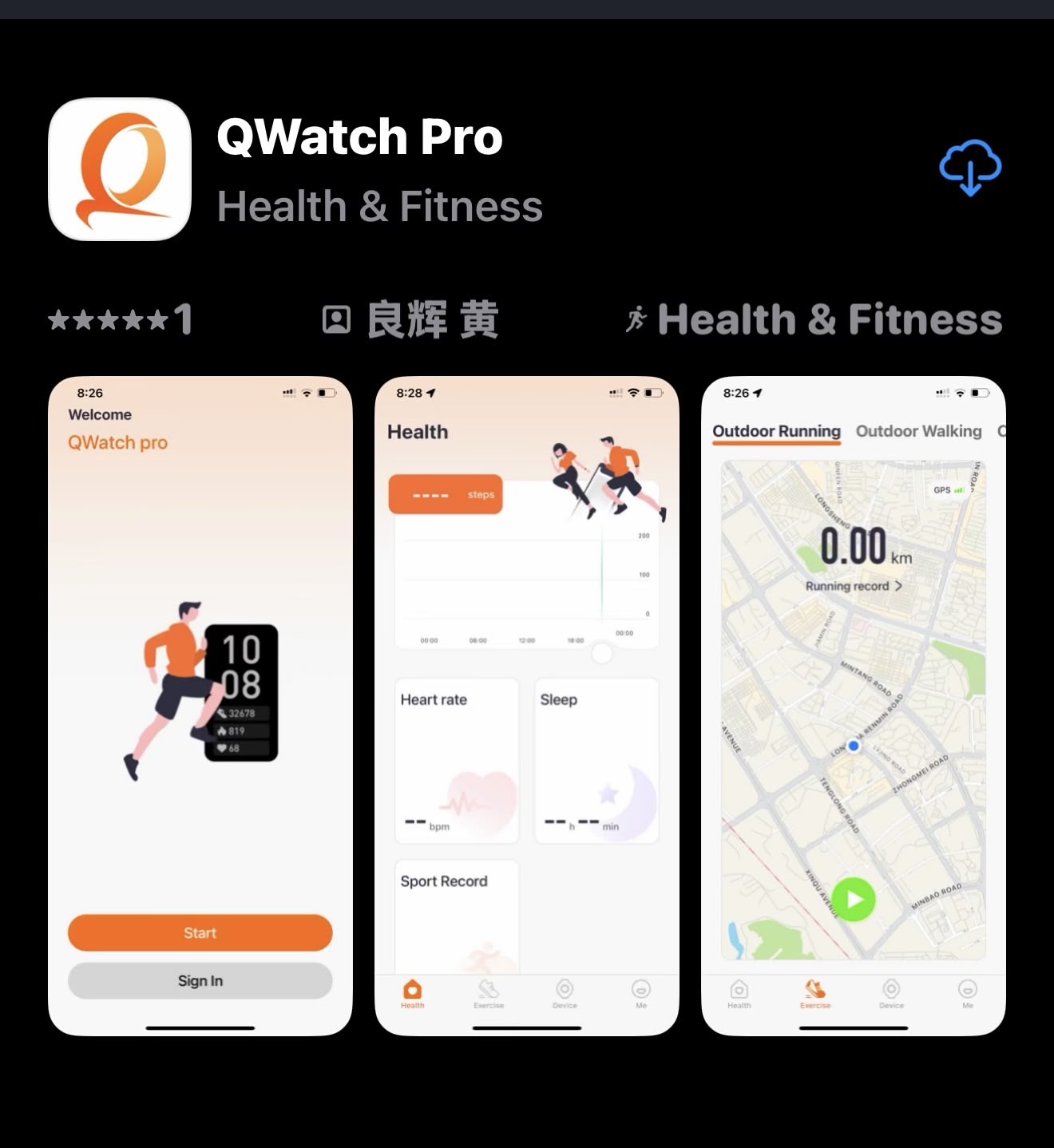
For set-up of your Zenith with the QWatch Pro App, please see below 2 – Setting up the QWatch Pro App
1.2 - For Google Play Store (Android)
1.2.1 - Use QR code below or click the following link to open Google Play Store on your Android Smartphone
Open QWatchPro in Google Play Store
For manual download of the QWatch Pro app from the Google Play Store, please see the instruction above for the iOS App Store.
2 - Setting up the QWatch Pro app
2.1- Setting permissions
2.1.1 - Location tracking (optional)
If you want to allow the QWatch Pro App to track your location to enable work-out related options, please press “Allow While Using App”. This is optional and allowing “location services” is not required for the basic functionality of the QWatch Pro App.
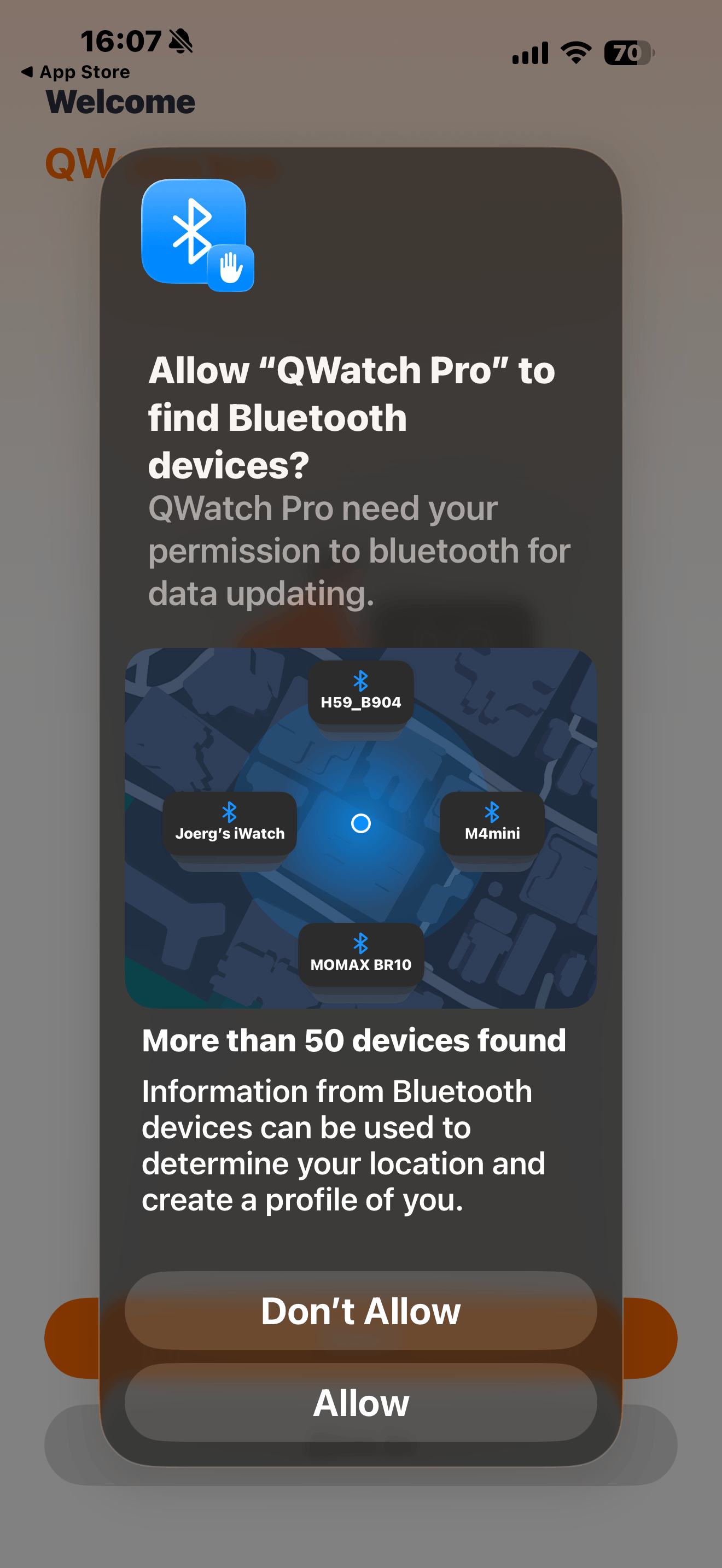
2.1.2 - Allow Permission for QWatch Pro App to find your Zenith Bionic Band (mandatory)
To connect your Zenith Bionic Band with your Smartphone it is required to allow QWatch Pro to find Bluetooth devices (the band uses Bluetooth to communicate with your smartphone).
2.2 - Login or Using as “Guest” (Login is optional)
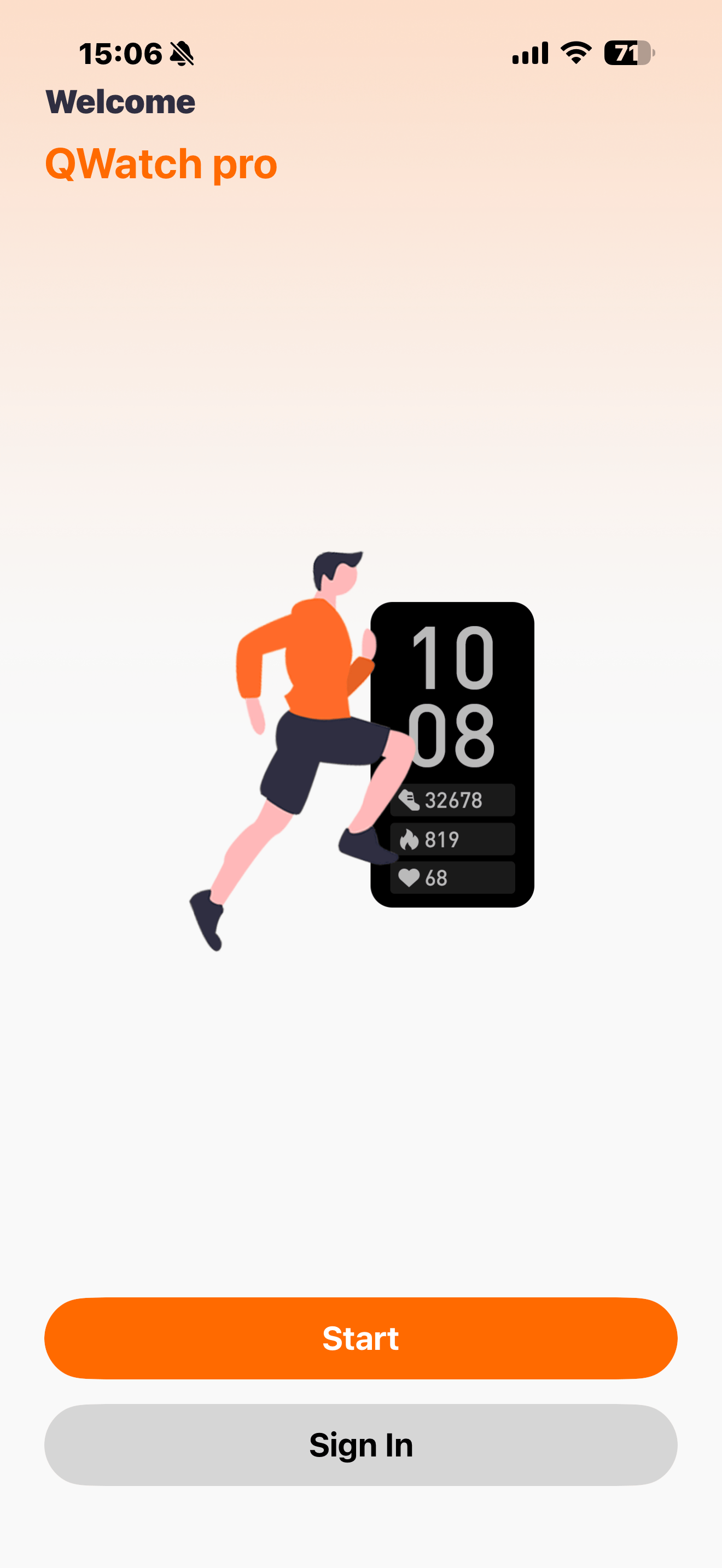
You can use the QWatch Pro App as “Guest” by just pressing Start. If you choose to create a login + password you may share information across devices.
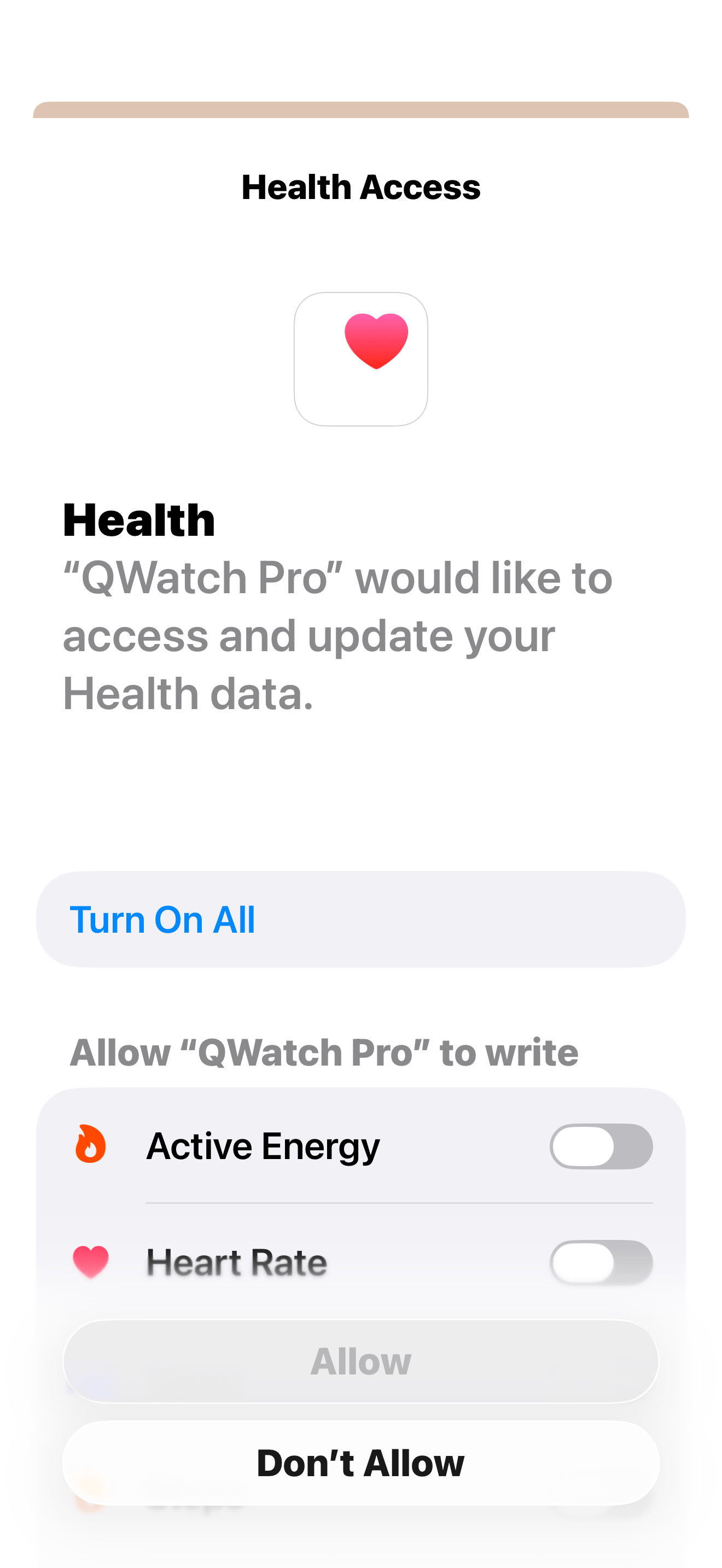
2.3 - Connect your QWatch Pro App with Apple Health (Google Health)
“Allow” (Health Access) is required for the app to share health data with your smartphone.
3 - Connecting your Bionic Ring with your QWatch Pro App
3.1 - QWatch Pro Dashboard (before pairing the Zenith Bionic Band)
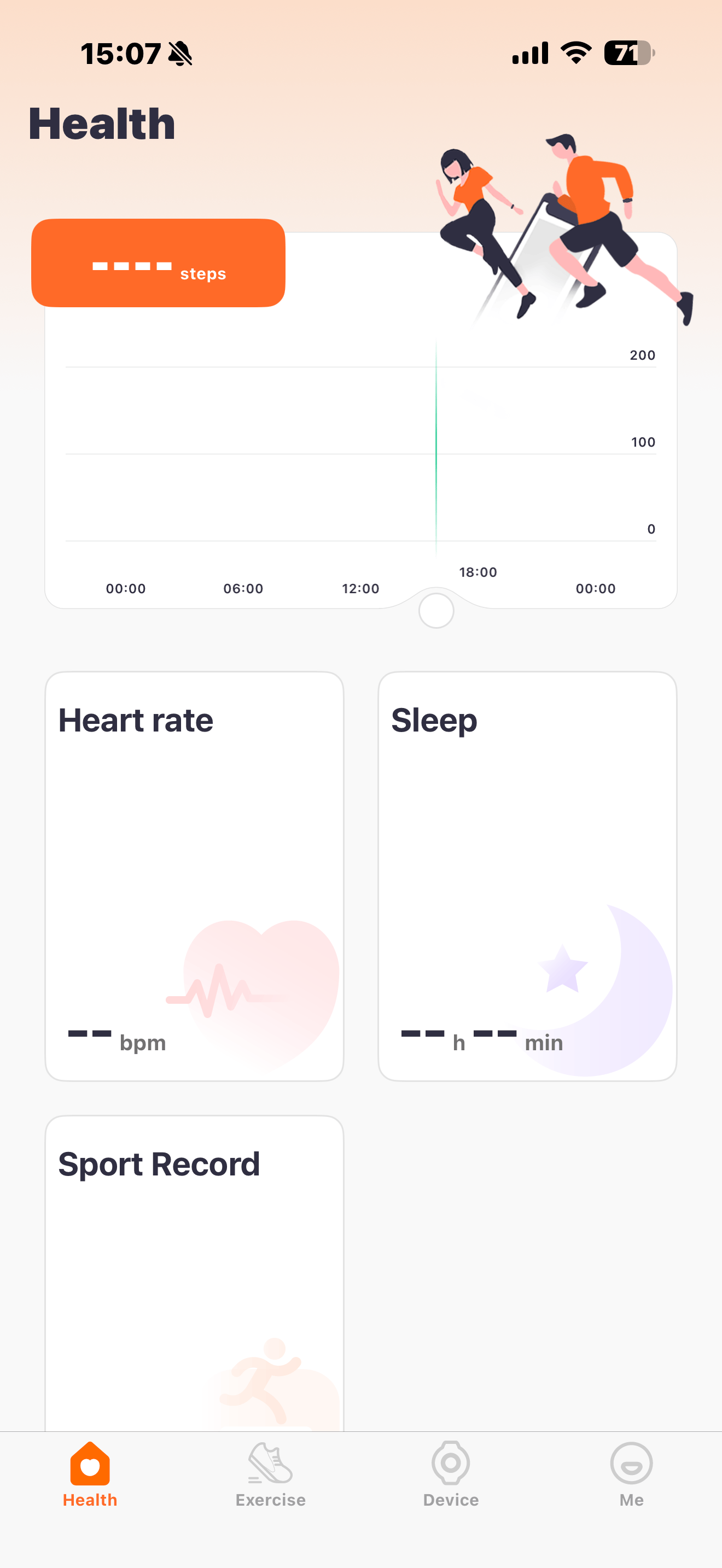
Press the icon in the bottom row called "Device" to switch to Device sub-site.
3.2 - Search for compatible Bluetooth devices - Add Zenith Bionic Band
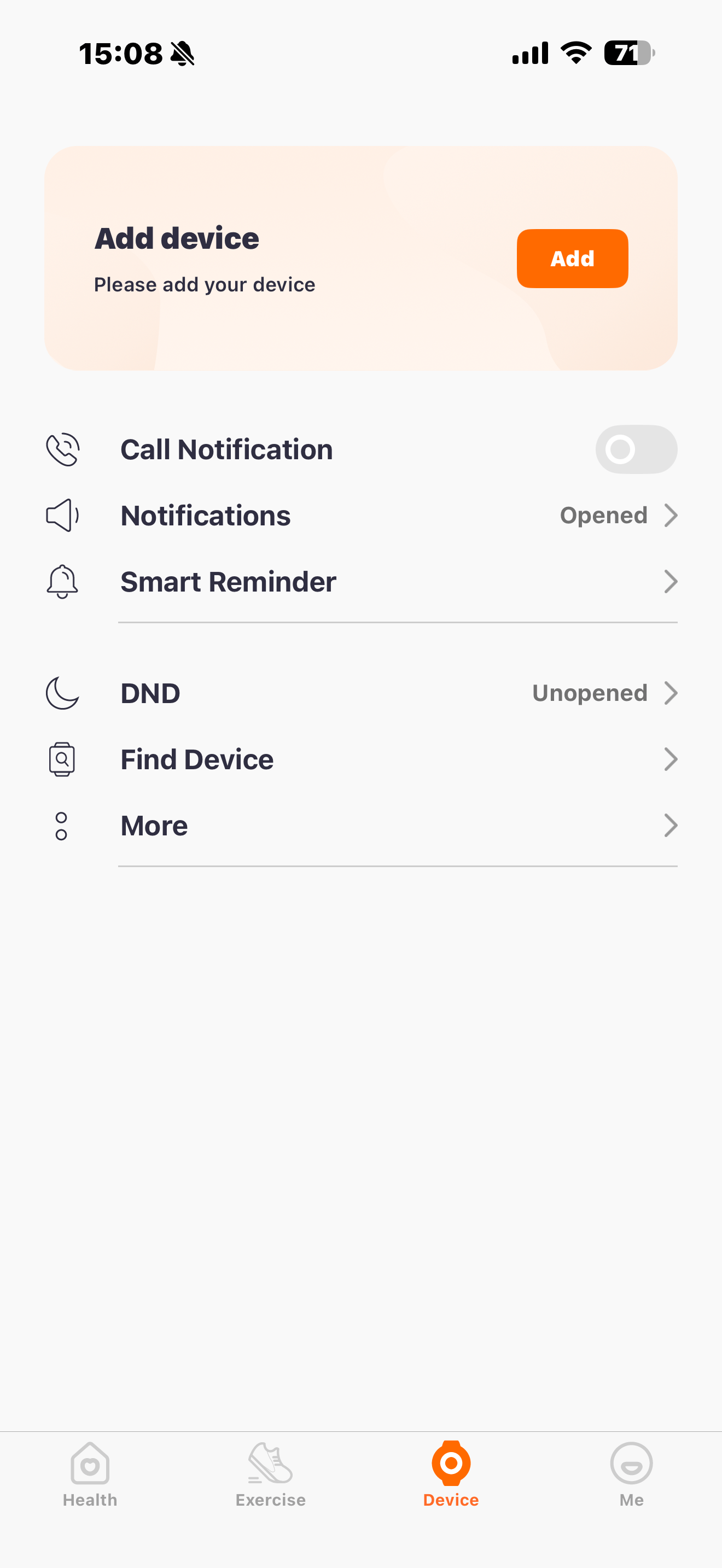
Press "Add device" to start searching fo your Zenith Bionic Band
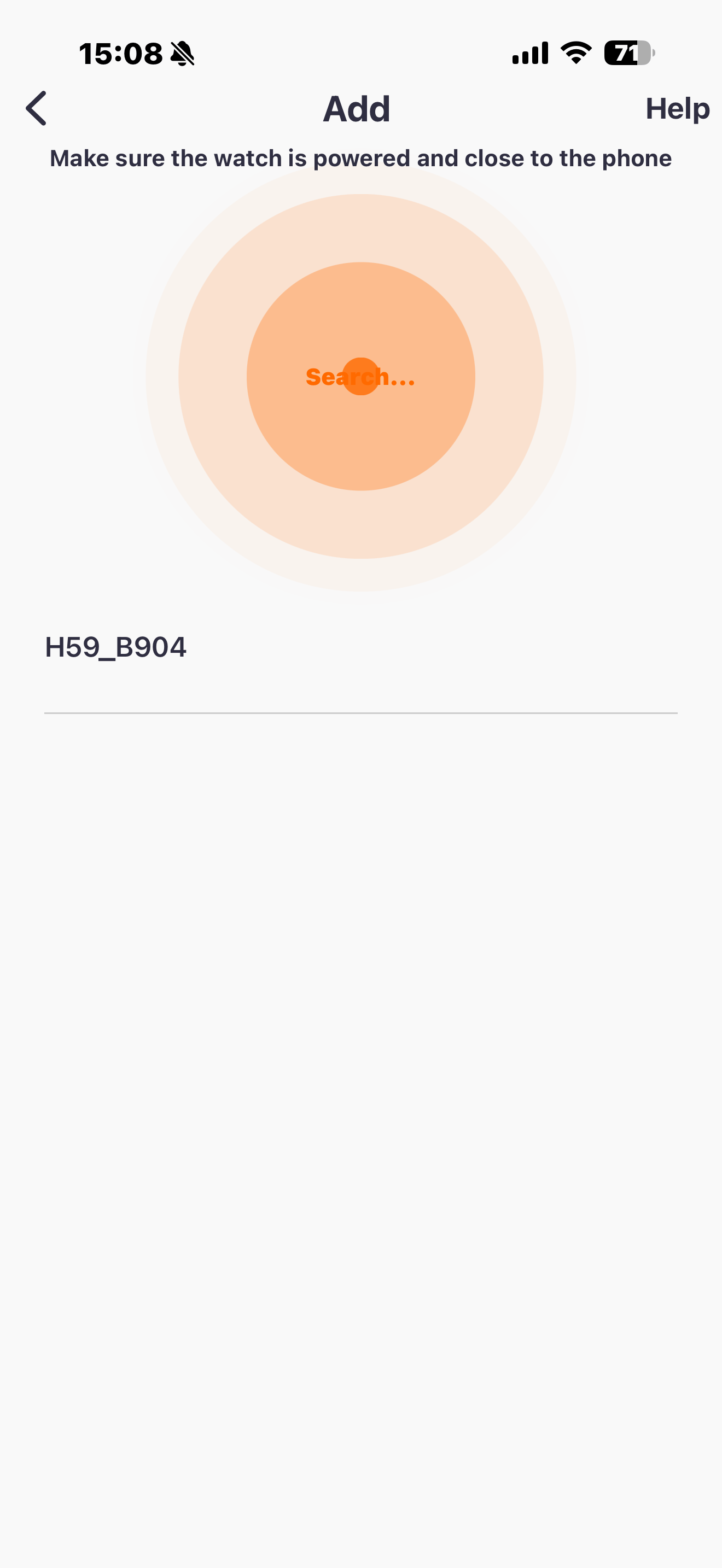
Your Zenith Bionic Band will show up with its Product ID “H59” and the last 4 characters of its MAC address (here: “B904”). Note: The MAC address of your band will be different. Please press "H59_xxxx" to connect your Zenith Bionic Band with the QWatch Pro App.
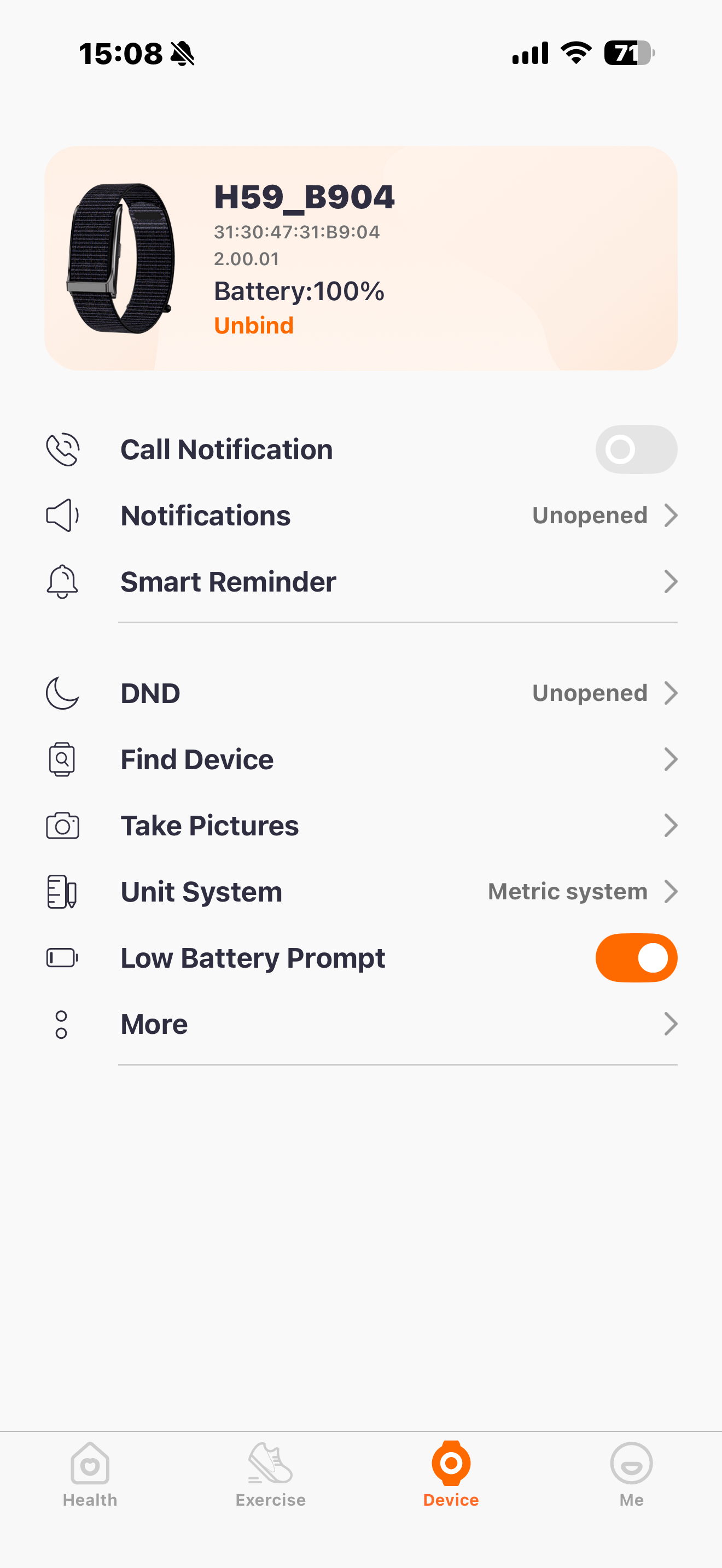
3.3 - Syncing the Zenith Bionic Band and the QWatch Pro App.
Once connected the band will syncronize with the app, which takes between 10 and 30 seconds.
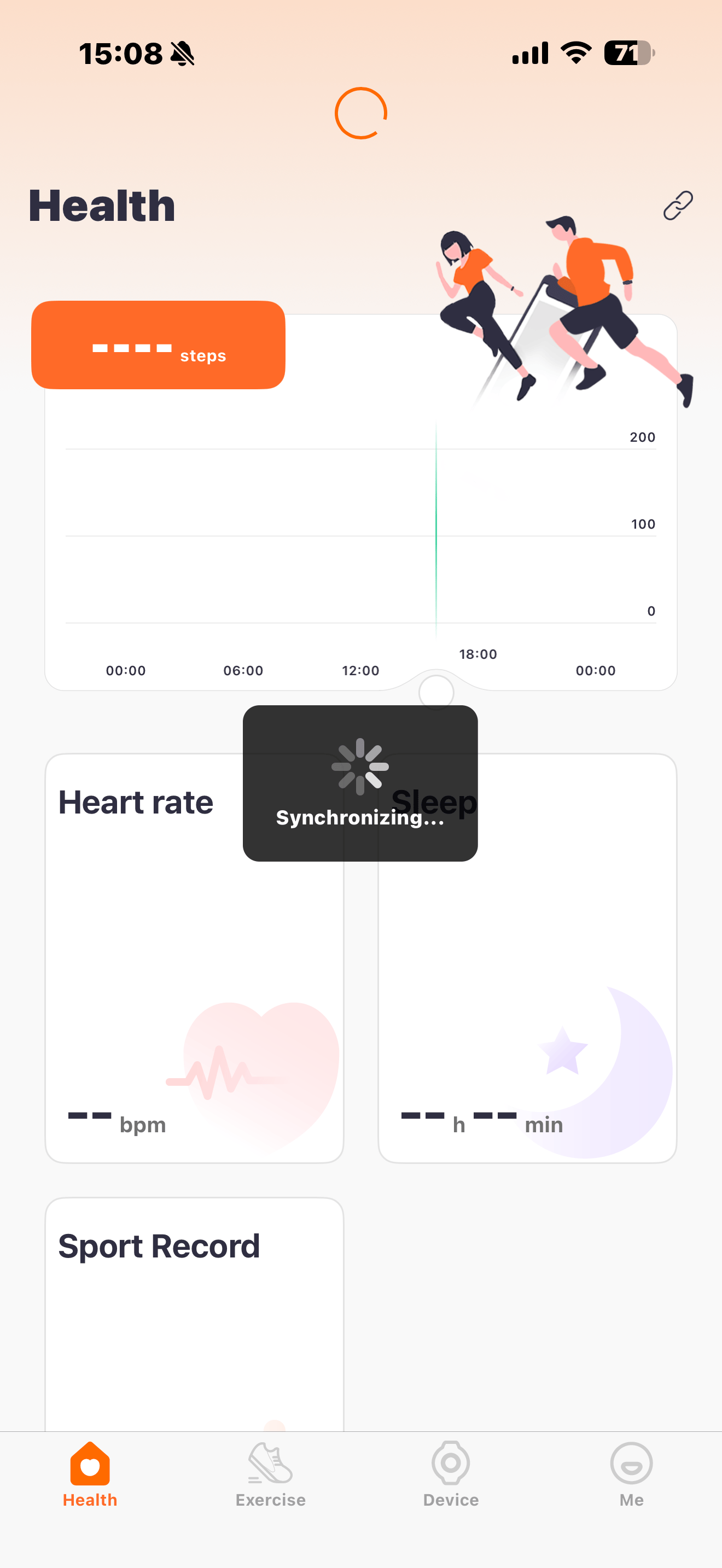
Your Zenith Bionic Band is now ready to go!
4. Additional Options
The below information is not required to use the basic functions of your Zenith Bionic Band.
4.1. Notifications
The Zenith Bionic Band can provide haptic feedback, if notifications are turned on.
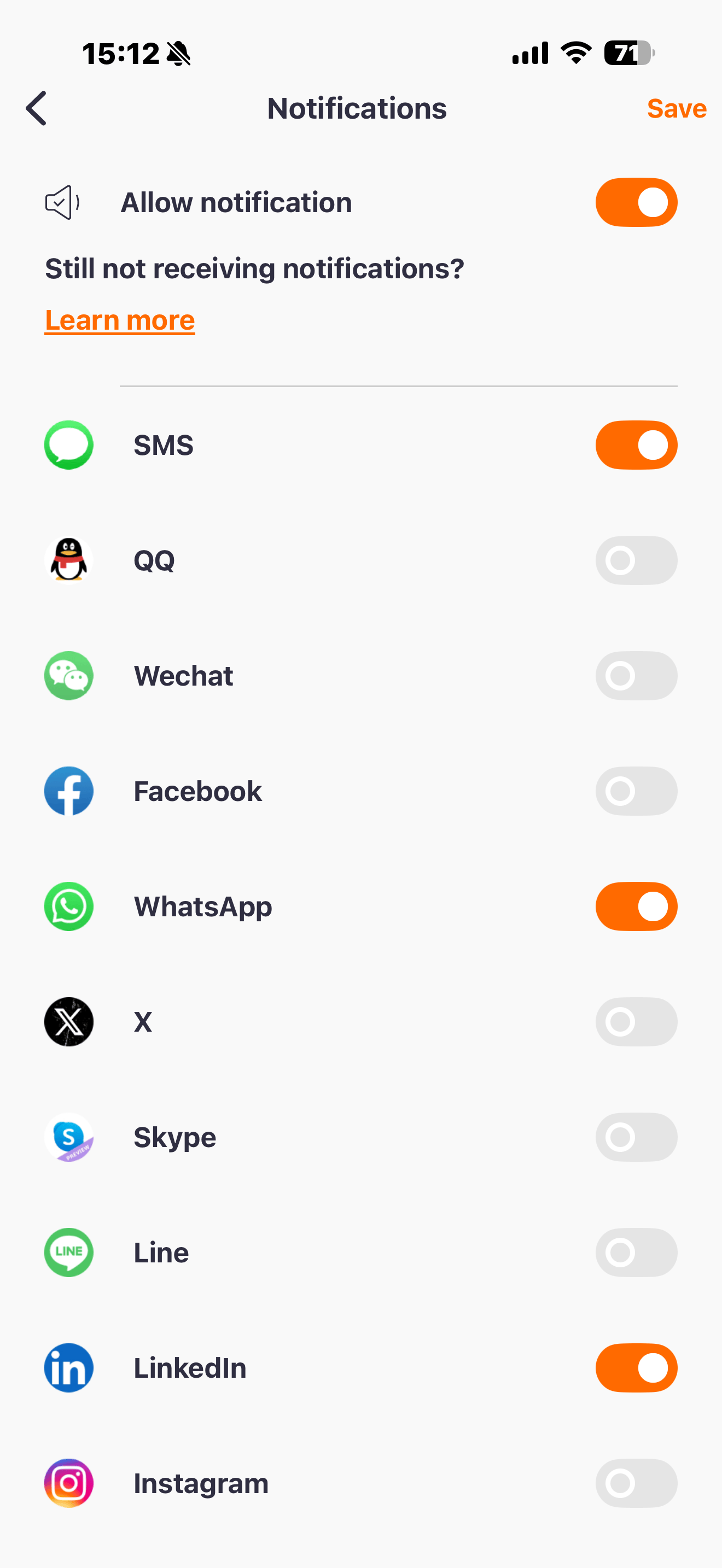
Notification options for many popular apps are available.
4.2. Do Not Disturb
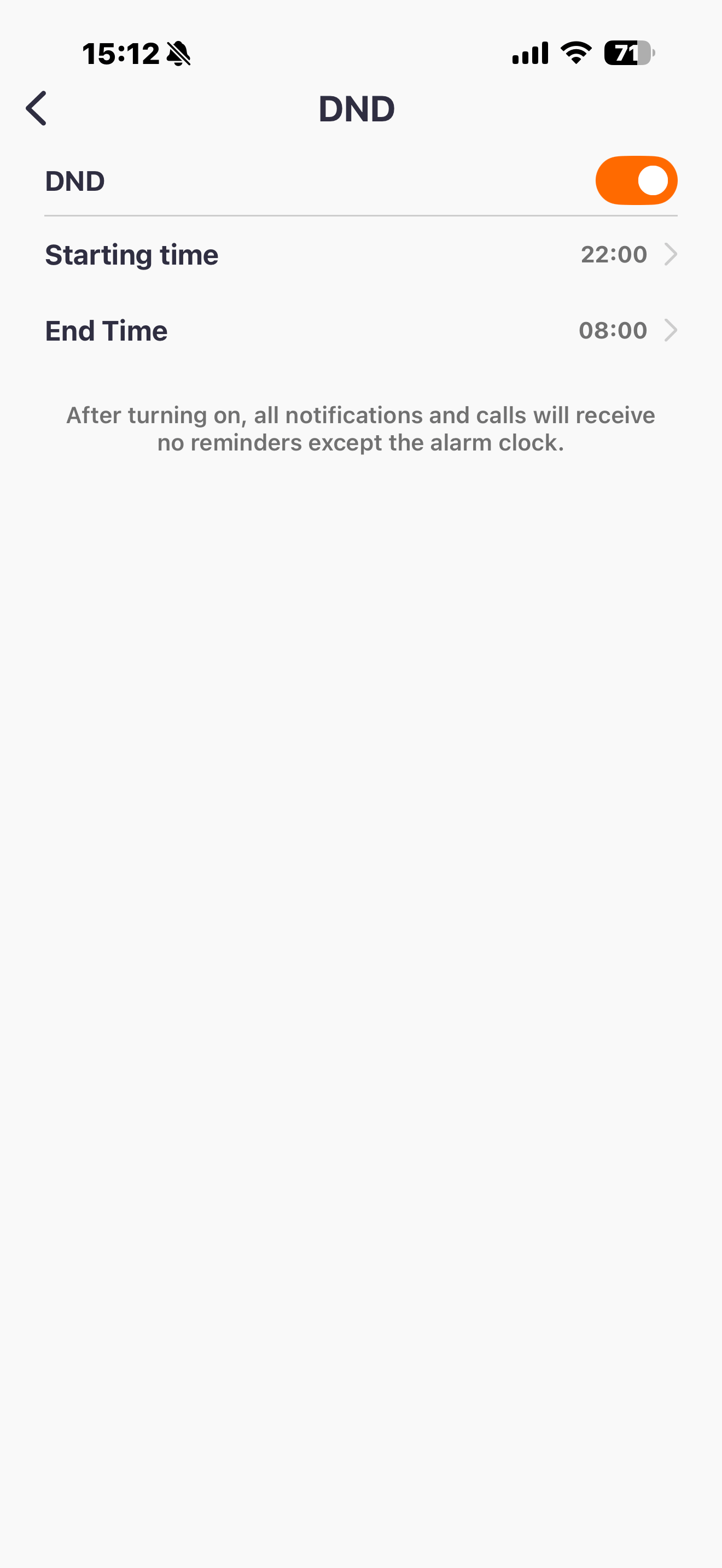
You can also set a time during which you do not want to receive notifications.
4.3. Unit System
You can switch from the Metric to the Imperial system.
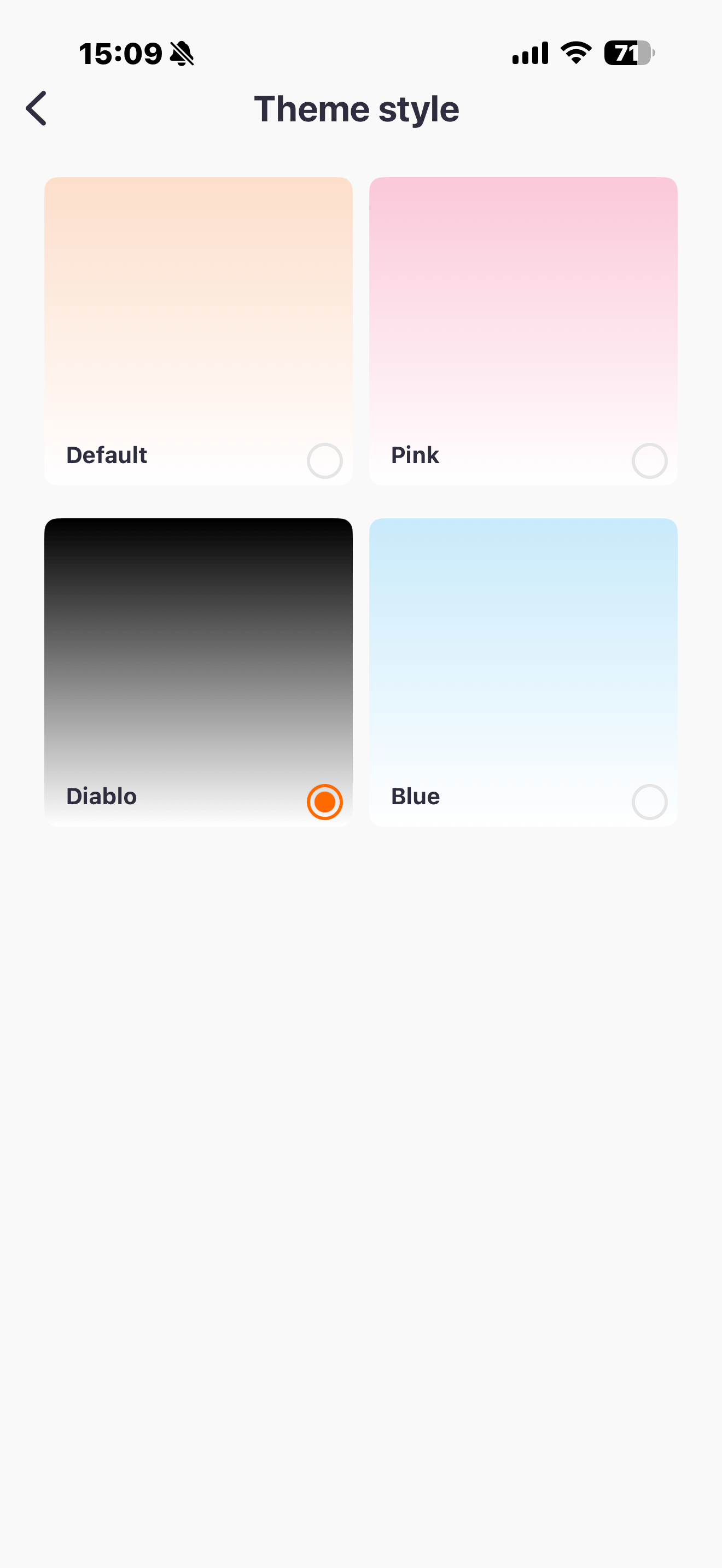
4.4. Theme style
Themes are on the Me sub-site, not the Device sub-site.
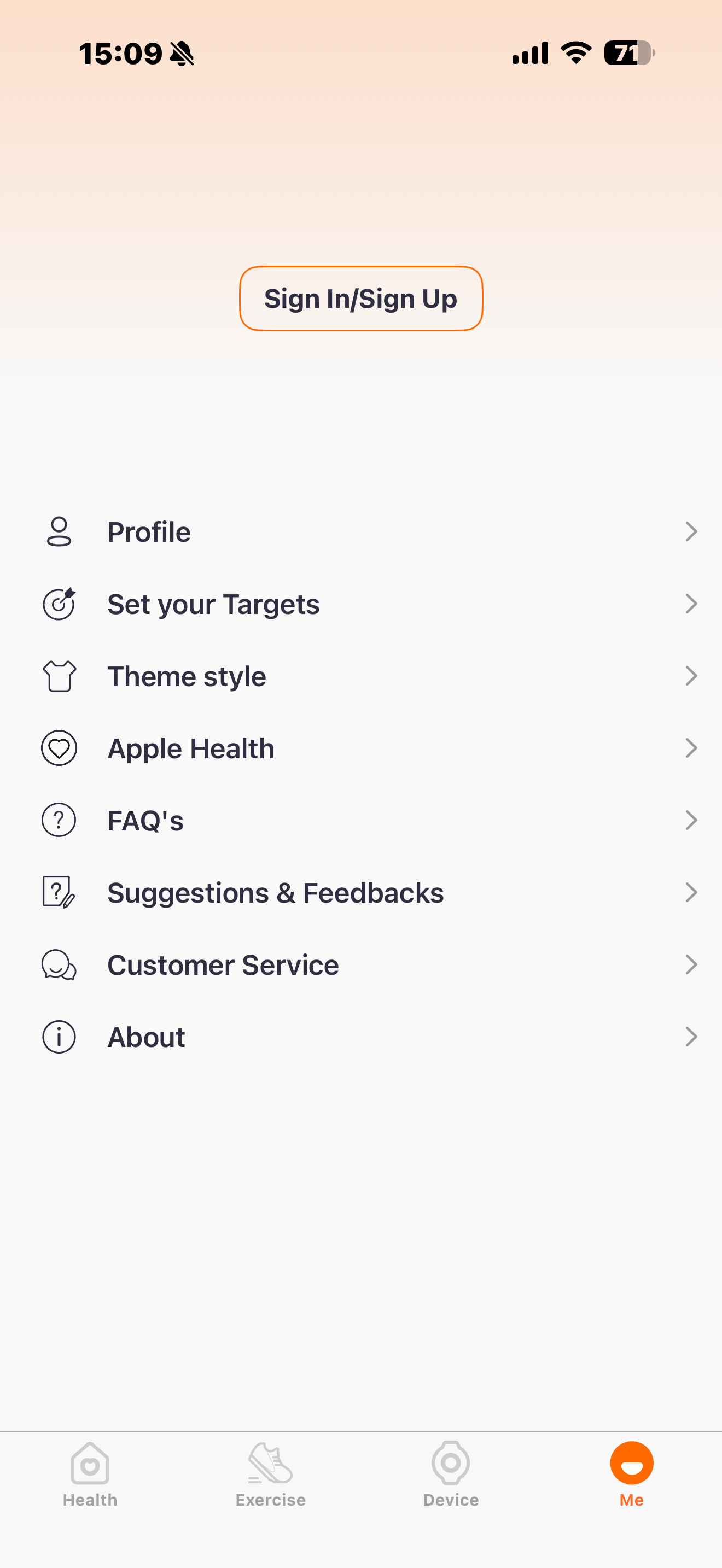
You prefer dark mode? No problem, you can change the theme from light to dark, or pink/blue for that matter.
Any Questions?
Please don’t hesitate to contact us at support@airguard.ai
Have a question?
Get in touch.