
Any questions, please don’t hesitate to contact support@airguard.ai
1 - Downloading the SmartHealth App
1.1- Downloading from the App Store (iPhone)
1.1.1 - Use QR code below or click the following link to open the iOS App Store
Open SmartHealth in App Store
OR
1.1.2 - Search for iOS App store on your iPhone
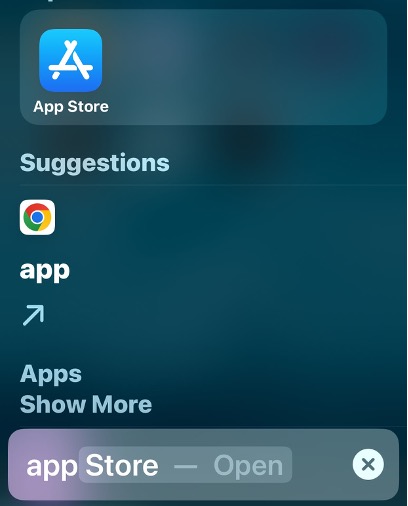
Open 🔍 Search in iOS App Store and search for “SmartHealth”
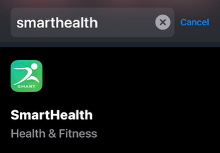
Open the SmartHealth app
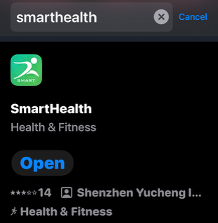
For set-up of your Bionic Ring with the SmartHealth App, please see below 2 – Setting up the SmartHealth App.
1.2 - For Google Play Store (Android)
1.2.1 - Use QR code below or click the following link to open Google Play Store on your Android Smartphone
Open SmartHealth in Google Play Store
For manual download of the SmartHealth app from the Google Play Store, please see the instruction above for the iOS App Store.
2 - Setting up the SmartHealth app
2.1- Setting permissions
2.1.1 - Location tracking (optional)
If you want to allow the SmartHealth App to track your location to enable work-out related options, please press “Allow While Using App”. This is optional and allowing “location services” is not required for the basic functionality of the SmartHealth App.
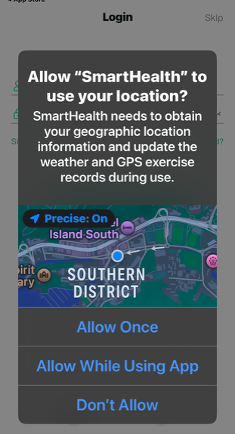
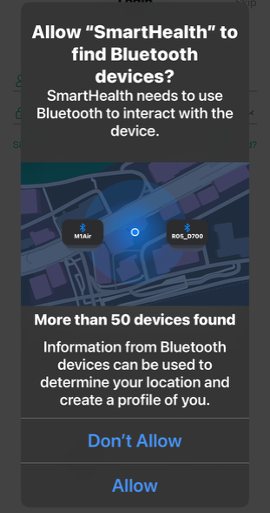
2.1.2 - Allow Permission for SmartHealth App to find your Bionic Ring (mandatory)
To connect your Bionic Ring with your Smartphone it is required to allow SmartHealth to find Bluetooth devices (the Ring uses Bluetooth to communicate with your smartphone).
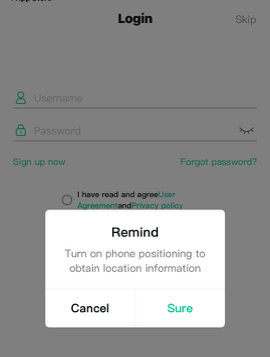
2.1.3 - Confirm denial of “location tracking” (if applicable)
2.2 - Login or Using as “Guest”
You can use the SmartHealth App as “Guest” / “No account login” - user. If you choose to create a login + password you may share information across devices.
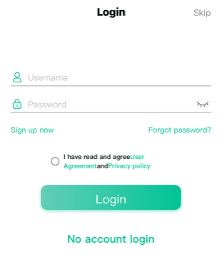
Tick the “I have read and agree User Agreement and Privacy policy” checkbox.
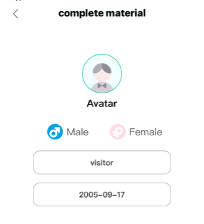
2.3 - Personalize your Avatar
Provide details re your biological sex and age (date of birth).
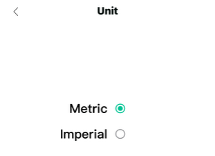
2.4 - Choose your preferred unit of measurement
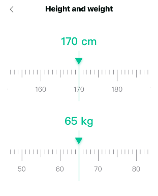
2.5 - Set your height and weight
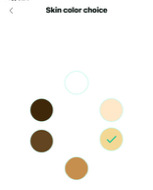
2.6 - Set your skin color
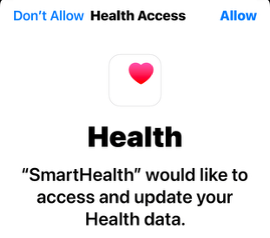
2.7 - Connect your SmartHealth App with Apple Health (Google Health)
“Allow” (Health Access) is required for the app to share health data with your smartphone.
3 - Connecting your Bionic Ring with your SmartHealth App
3.1 - SmartHealth Dashboard (before pairing the Bionic Ring)
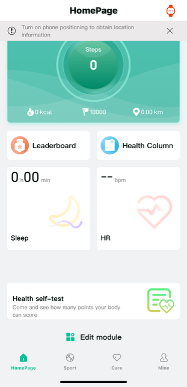
Press the top right hand corner watch icon to commence device pairing.
3.2 - Search for compatible Bluetooth devices.
Your Bionic Ring will show up under as “W9” if you ordered a Tribal design and “R18” if you ordered a Flora design and the last 4 characters of its MAC address (here: “F1F7”). Note: The MAC address of your ring will be different.
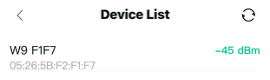
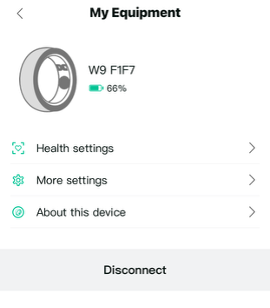
Tap “W9 xxxx” or “R18 xxxx” to pair your ring with the SmartHealth App.
Any Questions?
Please don’t hesitate to contact us at support@airguard.ai
Have a question?
Get in touch.